Blog / How-To

Blog

All How-To Mazda CX-5 Local 2026 Mazda CX-30 Mazda CX-90 Brand vs. Brand Mazda CX-50 Mazda3 Maintenance Reliability Trunk Space Interior Mazda CX-70 Mazda CX-9 Mazda MX-5 Miata Conshohocken Mazda Dealer Mazda MX-5
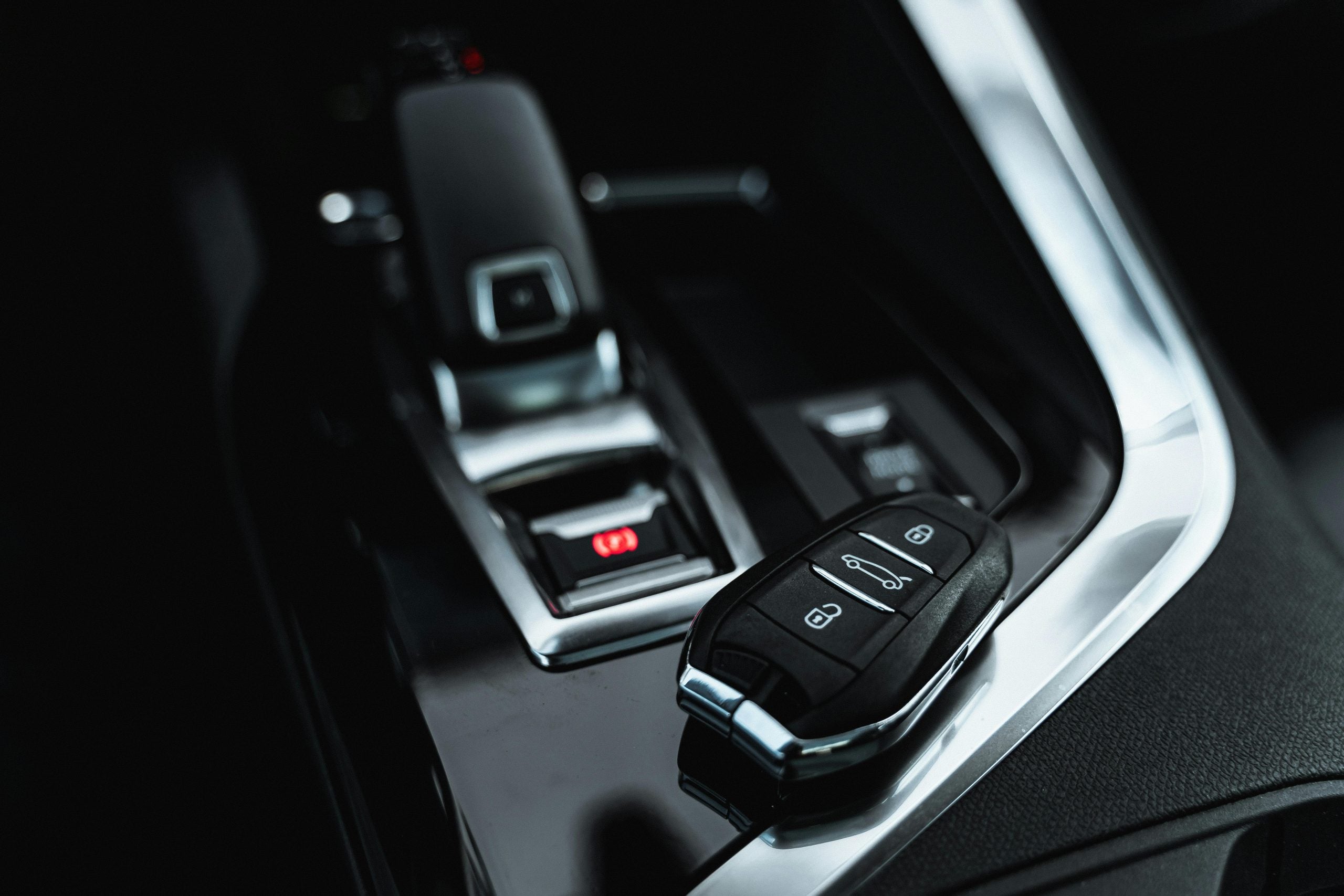
Car Key Laying Inside the Car

How Do You Use Remote Start on Your Mazda CX-5 in Conshohocken?

Imagine walking to your toasty warm Mazda CX-5 on a freezing Conshohocken morning, or sliding into a perfectly cooled cabin on a hot summer day. Remote start turns daily drives into comfy experiences by prepping your car's climate before you step foot outside. This guide cuts through the confusion about firing up your CX-5 from a distance, giving you the exact button-pushing know-how to deal with any weather Pennsylvania throws your way. more Schedule Service Understanding the Mazda CX-5 Remote Start System The beauty of remote start is that you can warm up or cool down your CX-5 before you head to the vehicle. The feature typically enables you to run your car for about 10-15 minutes before it automatically shuts down to save gas. This tech works through radio signals from your key fob or a smartphone app through Mazda Connected Services. Hit the button, and your car prepares the perfect temperature while you stay comfy indoors. Cold-weather engine warm-ups aren't just about comfort either — they actually cut down engine wear and make your car run better right from the start. If you don't have factory remote start, Mazda sells an OEM Remote-Engine-Start kit that fits 2013-2025 automatic-transmission models. Aftermarket options such as the Fortin EVO-ONE provide similar functions, but these systems need special wiring connected to various car components, so it's always wise to consult a professional unless you have experience with custom installs. Preparing Your Mazda CX-5 for Remote Start Before you start, check that your CX-5 actually has this feature. 2013-2020 CX-5s have no built-in remote start, but the dealer-installed accessory fob kit is available for every trim. If you have a 2021-2025 model, the MyMazda app remote start comes standard with a complimentary trial of one to three years, depending on model year. The accessory fob kit still works on these vehicles if you prefer a physical remote. Factory smart keys (the ones included with every CX-5) do not start the engine on their own unless you've added an aftermarket module. Dead key fob batteries kill the remote start feature fast, so if your fob seems sluggish or unreliable, swap the battery as soon as possible. Key fob battery problems can cause system failures that affect not just remote start but also your ability to unlock doors and start the car normally. Ignoring low battery warnings might leave you needing a jump-start, so replace your batteries at the first sign of trouble. Activating Remote Start on Your Mazda CX-5 Your CX-5's model year determines how you'll fire it up remotely. The MyMazda app gives you the most control, allowing you to start the engine, set climate preferences, lock or unlock the doors, and check the vehicle status. This system needs an active Mazda Connected Services subscription and a compatible smartphone. The app typically works from farther away than your key fob and lets you monitor things from a distance. For key fob starting, press and hold the START button (on the Mazda accessory remote) or the LOCK button three times in three seconds (on aftermarket modules). You should hear confirmation sounds or see flashing hazard lights before the engine cranks and the climate control comes on. Stay within range, though; if you're too far away, it won't work. If the car fails ro come on, move closer and try again. Safety Precautions and Operational Tips Never use remote start in a closed garage or tight space, as carbon monoxide kills. Always use this feature in open areas, such as driveways or parking lots. Note that your CX-5 stays locked during remote start as a theft deterrent and shuts off automatically if someone opens a door, so you'll need your key to restart it once you're inside. Before using remote start, make sure your car's in park with the parking brake on and all doors locked. Double-check your owner's manual, as procedures vary between model years. If you find yourself facing ongoing problems with remote start, you might want to book a service appointment with us to get your system checked out properly. Experience Mazda CX-5 Convenience at John Kennedy Mazda Conshohocken Getting the hang of your CX-5's remote start completely changes winter mornings and summer afternoons in Conshohocken. Whether you're using the key fob or the app, having your car ready and waiting at the perfect temp is a game-changer. Knowing exactly how to use it — and what to do if it acts up — can make all the difference. Our team at Mazda of Conshohocken knows the ins and outs of these systems, so contact us today and let us help make your Mazda ownership smoother, simpler, and more comfortable year-round.
CarPlay

How To Set Up Apple CarPlay in Your Mazda CX-5

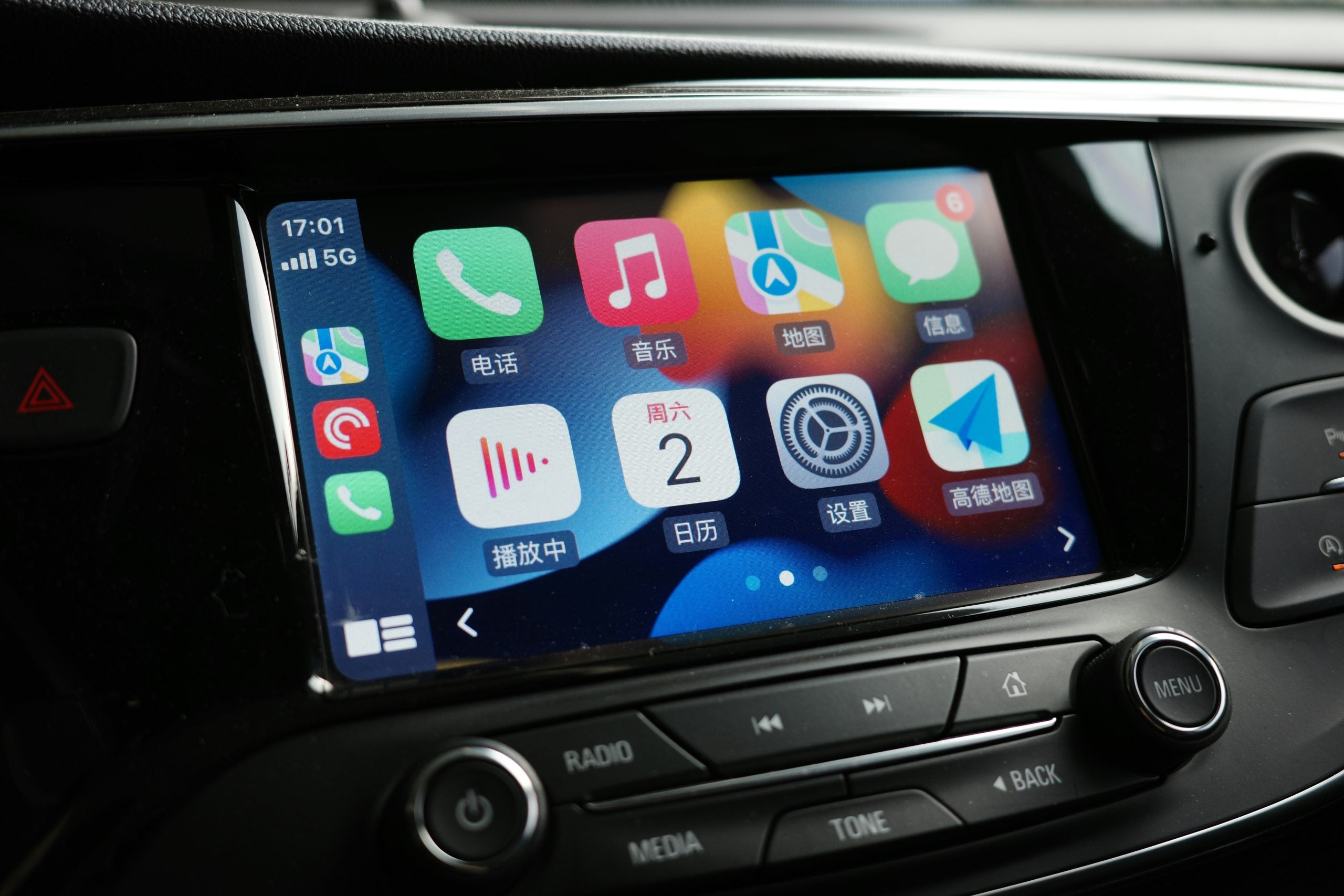
Your iPhone and the Mazda CX-5 make quite the team when linked through Apple CarPlay. Whether you're stuck in traffic, need directions, or want to listen to your favorite podcast, you can do it all without taking your hands off the wheel. This guide walks you through the process of connecting Apple CarPlay to your Mazda CX-5. We'll go over the setup, troubleshoot common problems, and even touch on new features, such as CarPlay Ultra, that will take your driving setup to new heights. more Contact Us Understanding Apple CarPlay: A Quick Overview Apple CarPlay brings your iPhone apps right to your Mazda's screen. Texts, calls, maps, music, and more are all available at your fingertips or through Siri, meaning your focus stays on the road. It's like having a smart assistant that knows exactly what you need — perfect for those busy morning commutes. CarPlay Ultra is Apple's next-generation in-car experience, which links directly to your car's systems. It allows you to control vehicle functions, such as heating and ventilation, via the screen, buttons, or voice. It even displays relevant information on your instrument panel, allowing your Mazda to work smarter with your phone. Pre-Setup Requirements for Apple CarPlay in the Mazda CX-5 If you own a 2019 or newer Mazda CX-5, then the good news is that Apple CarPlay comes built-in. Older models will need a Mazda Connect upgrade (which you can get from a dealership) and 2.1-amp USB ports. For basic CarPlay functionality, you'll need an iPhone 5 at a minimum. CarPlay Ultra requires an iPhone 12 or newer running iOS 18.54 or higher. Make sure to keep Siri activated when using CarPlay, as she's crucial for hands-free usage during I-476 commutes or in Philly traffic jams. Avoid cheap cables, and only use genuine Apple Lightning or certified USB connections and adapters. It's also wise to keep your Mazda's system regularly updated. If you need help, our staff at John Kennedy Mazda Conshohocken can assist with countless issues ranging from glitches to frozen screens. Step-By-Step Guide to Connecting Apple CarPlay to Your Mazda CX-5 To get started, unlock your iPhone and activate Siri. Plug in your Lightning to USB cable and then locate the USB port with the smartphone symbol — usually in the center console. Start your car and wait for the system to boot. Tap "Yes" or "Enable" at the prompt. When your iPhone asks about using CarPlay while locked, hit Allow — this will mean your CX-5 can access CarPlay without you having to unlock your phone. After a short while, your apps should appear and be ready to use. If you're having any issues, try the classic troubleshooting method: disconnect, count to ten, and reconnect. If it's still not working, then a system update will typically fix most issues without requiring a trip to the dealer. However, if you need more help, our local technicians at John Kennedy Mazda Conshohocken are on hand to help solve your CarPlay problems quickly and easily. Minor hiccups aside, CarPlay typically provides a reliable user experience. Maximizing Your Apple CarPlay Experience in the Mazda CX-5 You can personalize Apple CarPlay in your Mazda CX-5 to make it your own. To customize your layout, hold any icon until it wiggles, then drag it wherever you want it to go. You might want to keep maps front and center for navigating Conshohocken's one-way streets, music for entertainment in I-76 jams, and weather updates for Pennsylvania's unpredictable climate. Consider adding a range of helpful apps to maximize your driving experience. Waze can help you avoid those Roosevelt Boulevard delays, ParkWhiz assists in locating those hard-to-find city center parking spots, and Spotify and Audible provide the perfect soundtrack for your weekend trips to the Poconos. Remember that Siri improves with use. You can use voice commands such as “Open Maps” or “Go Home” to navigate hands-free. These commands help to keep your eyes on the road, which is vital at tricky Conshohocken intersections or when merging onto the Schuylkill Expressway. Enhancing Your Mazda CX-5 Experience With Apple CarPlay Apple CarPlay can transform your daily drive, making it easier, safer, and more connected. If you need help with setup or are interested in the latest CX-5 models equipped with CarPlay, contact us and speak to our friendly team. We'll answer all your questions and show you new Mazda models. Whether you're ready to upgrade or just need help getting connected, you can also schedule a service appointment for personalized support.

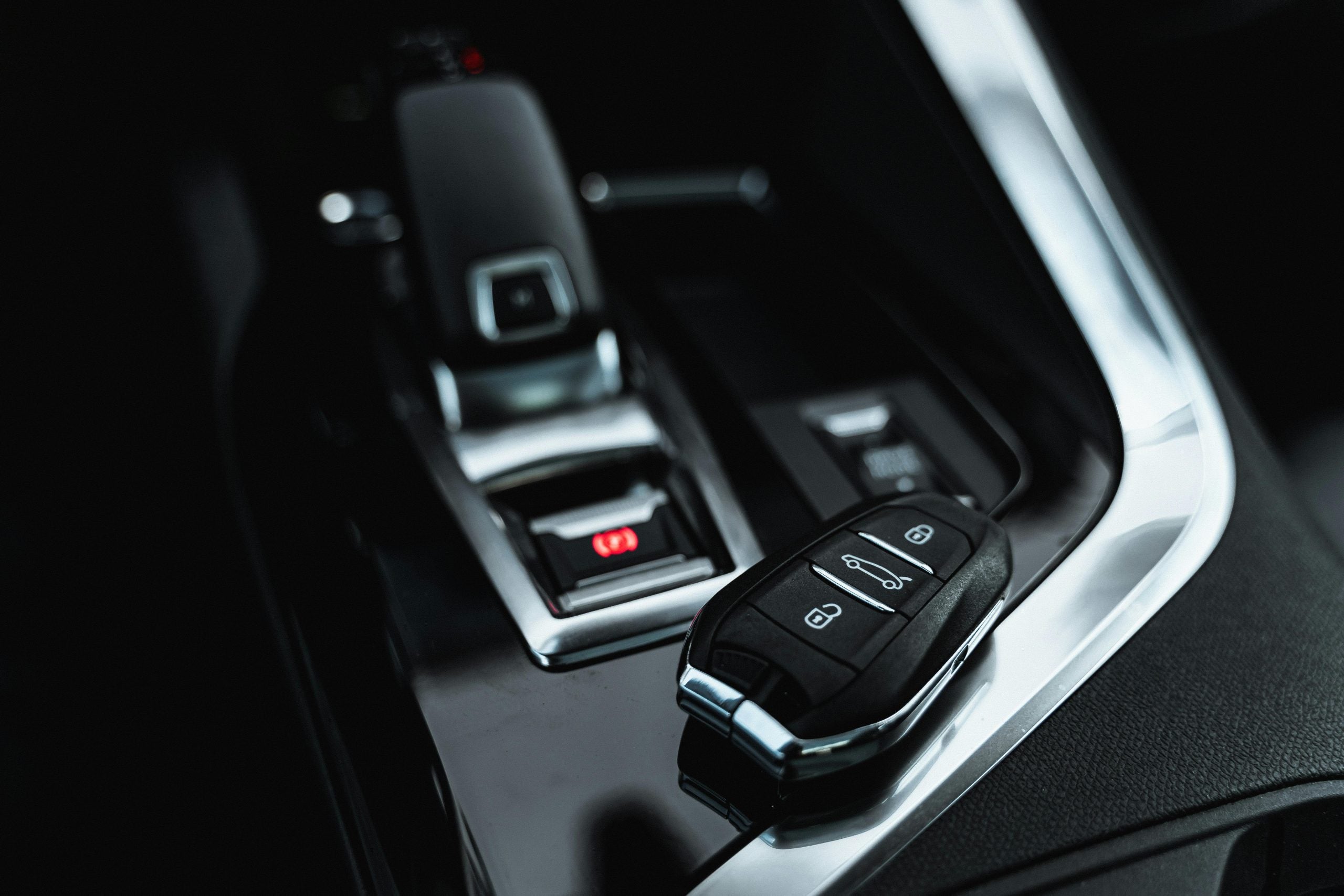
Car Key Laying Inside the Car

How To Change Your Mazda Key Fob Battery in Minutes

Does your Mazda seem unresponsive to your key fob from a distance? Do you have to press the unlock button multiple times for it to work? These are telltale signs of a dying battery in your key fob. Replacing the battery is a quick and easy process you can do in minutes, saving you time and a trip to the dealership. At John Kennedy Mazda in Conshohocken, we believe in empowering our customers with the knowledge they need to take care of their vehicles. Let's look at how to replace a Mazda key fob battery quickly and easily. more Genuine Mazda Parts Contact Us Identifying Your Mazda Key Fob Model Before you begin, identify your specific Mazda key fob model. Different models may have slightly different designs, which can affect how you open the fob and replace the battery. Most Mazda vehicles use either a CR2025 or CR2032 battery, but always check your owner's manual or the existing battery for confirmation. Knowing your model can help you follow the steps for a successful battery change. Necessary Tools and Materials To change the battery in your Mazda key fob, you'll need a few basic tools and materials. Here's what you should gather: Flathead screwdriver: This will help you open the key fob without damaging it. Replacement battery: Make sure you have the correct Mazda key replacement battery, usually a CR2025 or CR2032, depending on your model. Tweezers: These can assist you in handling small components, especially the battery. Microfiber cloth: Use this to clean the fob while you have it open. Having these items ready will make the process smoother and quicker. Step-By-Step Guide to Changing the Mazda Key Fob Battery Now that you have your tools let's walk through the steps to change your Mazda key fob battery. Remove keychain: For easier handling, take off any keychain attached to your key fob. Open your Mazda key fob: Use the flathead screwdriver to gently pry open the fob along the seam. Be careful to avoid damaging the casing. Access the battery compartment: Once open, look for a small tab near the key end of the fob. Press this tab down while pulling on the opposite end of the fob to release it completely. Remove the old battery: Carefully lift out the old battery using your tweezers. Take note of its orientation for installing the new one. Insert the new battery: Place the new Mazda key battery in the same orientation as the old one. Ensure it fits snugly into its compartment. Reassemble the key fob: Align the two halves of the fob and press them together until they click into place. Double-check that it closed securely. Test the key fob: Press any button to ensure the fob is working correctly. If it operates smoothly, you're all set. By following these straightforward steps, you can efficiently change your Mazda fob battery. Tips for Extending Battery Life in Your Mazda Key Fob Once you've changed your battery, consider these tips to help extend its life: Avoid exposure to extreme temperatures: Keep your key fob in a temperate environment to prevent battery drain. Limit use of unnecessary functions: If your fob has features you rarely use, minimize their activation to save battery life. Regularly check battery status: Keep an eye on the battery's performance and replace it before it dies completely. Store the fob away from other electronic devices: This helps prevent interference that can drain the battery. Troubleshooting: After Changing Your Battery After replacing the battery, you might encounter some issues. Here are some common troubleshooting tips: Check battery orientation: Ensure that you oriented the new battery correctly. Inspect for damage: Look for any cracks or damage in the casing that might affect functionality. Test all functions: Make sure all buttons work as intended; if not, recheck the connections inside the fob. Resetting your key fob: Sometimes, a reset may be necessary. Consult your owner's manual for specific instructions related to your model. If you're unable to resolve these issues, don't hesitate to reach out to our team at John Kennedy Mazda Conshohocken for assistance. When To Seek Professional Assistance While changing the battery in your Mazda key fob is a straightforward task, there are times when you should seek professional help. If you find that your key fob still doesn't work after a battery change, or if you're uncomfortable opening the Mazda key fob yourself, come to our dealership. Our experienced technicians can diagnose the problem and recommend the best solution. Frequently Asked Questions Changing the battery in your Mazda key fob can raise questions. Here are some common inquiries. How Often Should I Change My Mazda Key Fob Battery? You should change your Mazda key fob battery every one to two years, depending on usage. Can I Use Any Battery for My Mazda Key Fob? No, always use the recommended Mazda key replacement battery, usually a CR2025 or CR2032. What if My Key Fob Doesn't Work After a Battery Change? If your key fob isn't functioning, check the battery orientation. Is There a Way To Prevent My Key Fob Battery From Dying Quickly? Yes, avoid extreme temperatures and limit the use of unnecessary functions to help prolong battery life. Where Can I Get a Replacement Battery for My Mazda Key Fob? You can find replacement batteries at most automotive stores, online retailers, or even our dealership in Conshohocken if you need assistance selecting one. Final Thoughts: The Importance of Maintaining Your Mazda Key Fob Maintaining your Mazda key fob is essential for ensuring longevity and functionality. A well-maintained key fob not only enhances convenience but also adds peace of mind when accessing and securing your vehicle. By following our guide on how to change a Mazda key fob battery quickly and efficiently, you can avoid unnecessary dealership fees and keep your vehicle running smoothly. Contact Us Today for Assistance If you have any questions or need further assistance, don't hesitate to contact us at John Kennedy Mazda Conshohocken. Our team can help you with everything from Mazda key fob battery replacement to getting you into a new car. Schedule service with us today, and let's keep your Mazda running smoothly.

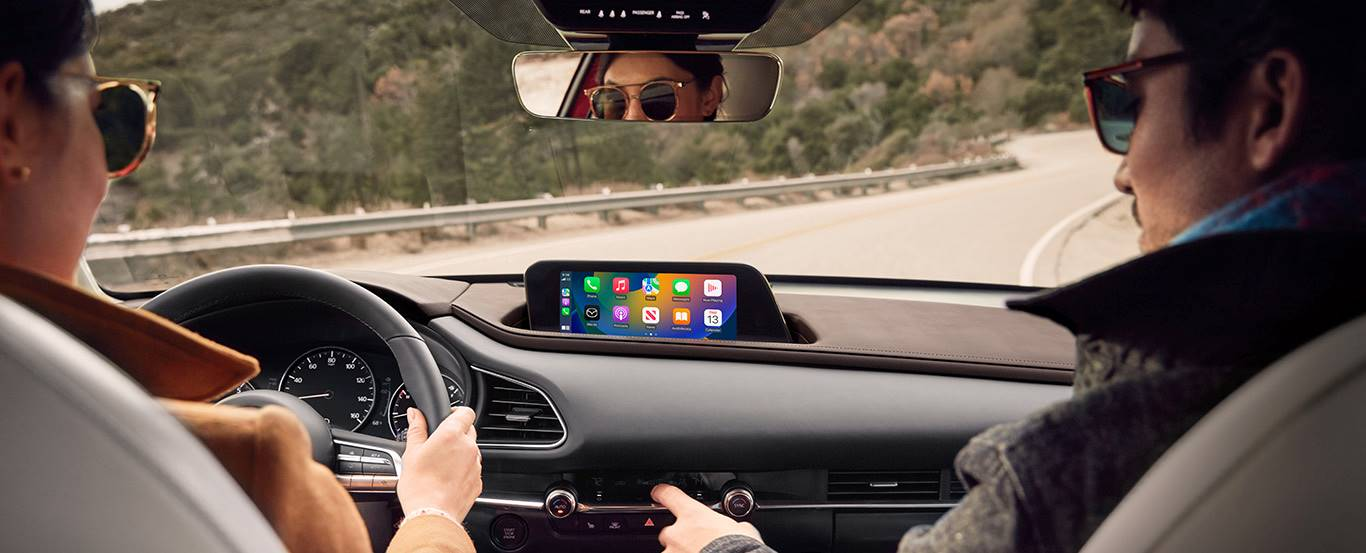
2024-mazda-cx-30-front-int-tech-couple

How To Reset Your Mazda Infotainment System

Your Mazda's infotainment system plays a crucial role in enhancing your Conshohocken, Pennsylvania, driving experience. It offers navigation, music, and communication features, all at your fingertips. Like any technology, it can encounter issues that may disrupt its functionality. Knowing how to reset your Mazda infotainment system is essential if you're noticing glitches or unresponsiveness. Read as our John Kennedy Mazda Conshohocken team shares the easy steps you can follow to troubleshoot problems effectively and restore your system's performance. more Schedule Service Identifying the Need for a Reset Before diving into the reset process, you should first identify why you may need to reset your Mazda's infotainment system. Common symptoms include unresponsive screens, connectivity problems, or software glitches. If you notice that the system is slow to respond or certain features aren't working correctly, it may be time for a reset. Understanding these issues is vital, as it'll guide you through the necessary steps to restore functionality. Preliminary Steps Before Performing a System Reset Before resetting your Mazda infotainment system, consider these preliminary steps to ensure a smooth process: Check the manual: Refer to the owner's manual for specific instructions related to your model. Backup data: If possible, back up essential data, including contacts and navigation settings. Ensure battery health: A weak battery can lead to system issues. Check the battery's health before proceeding. Update software: Ensure you have the latest software version for your infotainment system. Disconnect external devices: Remove any connected devices, such as USB drives or smartphones, to avoid interference. Taking these preliminary steps can help you avoid complications during the reset process. Step-by-Step Guide to Resetting Your Mazda Infotainment System Now that you've completed the preliminary steps, follow this step-by-step guide to reset your Mazda infotainment system: Turn on the ignition: Start your vehicle and ensure the infotainment system is on. Access the "Settings" menu: Locate the option on the main screen. Select "System": In the settings menu, navigate to the "System" option. Choose "Restore Factory Settings": This option will initiate the reset process. Confirm the reset: Follow the prompts to confirm that you want to reset the system. Wait for the reset to finish: The system will reboot automatically once the reset has finished. Reset Issues After performing a reset, you may encounter some issues. If your Mazda's infotainment system is still malfunctioning, consider the following: Persistent glitches: If the problems continue, you may need to check for software updates or consider a factory reset. Connectivity issues: Ensure Bluetooth and other connections are set up correctly after the reset. Navigation problems: If the navigation system is unresponsive, check for updates or calibration settings. If these problems continue, it may be time to contact a professional for assistance. How To Reset Bluetooth Connections on Your Mazda Infotainment System If you're having trouble with Bluetooth connectivity, a Mazda Bluetooth reset may help. Here's how to do it: Access Bluetooth settings: Go to the "Settings" menu and select "Bluetooth." Delete devices: Remove all paired devices from the list. Restart the infotainment system: Turn off the vehicle and restart it. Re-pair your device: Once the system is back on, try pairing your device again. Resetting your Bluetooth connections can improve connectivity and resolve issues with audio streaming and calls. Performing a Software Update on a Mazda Infotainment System Keeping the infotainment system up to date is essential for optimal performance. Follow these steps to update your Mazda infotainment system successfully: Check for updates: Go to the "Settings" menu and select "Software Update." Connect to Wi-Fi: Ensure your vehicle is connected to a stable Wi-Fi network. Download the update: If an update is available, follow the prompts to download and install it. Restart the system: After the update, restart your infotainment system to apply changes. Regular updates help enhance features and fix bugs, ensuring a smooth driving experience. FAQ: Solving Other Common Mazda Infotainment Problems If you still have questions or face issues, consider the answers to some frequently asked questions. What Should I Do if My Infotainment System Won't Turn On? If your system won't power on, check the battery and fuses. If everything seems normal, a factory reset may be necessary. How Can I Improve GPS Accuracy? If your GPS is inaccurate, ensure you have a clear view of the sky. A software update can also help improve performance. Why Does My Mazda's Infotainment System Keep Freezing? Outdated software or too many connections can cause the system to freeze. Restarting the system or performing an update may resolve this issue. How Do I Reconnect My Phone After a Reset? After a reset, you'll need to re-pair your phone. Go to the Bluetooth settings and follow the pairing process again. What Can I Do if the Audio Isn't Working? Check your audio settings to ensure the volume is up. If the issue persists, try performing a system reset. Contacting Mazda Support: When and How To Reach Out for Help If you've tried all these steps and your Mazda infotainment system still isn't working correctly, it may be time to reach out for help. Contact Mazda support for assistance or visit our dealership. At John Kennedy Mazda Conshohocken, our team can help you troubleshoot issues and determine if professional service is necessary. We're here to ensure you enjoy a seamless driving experience. Enhance Your Driving Experience With Efficient Infotainment Resetting your Mazda infotainment system can dramatically improve its performance. By following the steps in this guide, you can troubleshoot and resolve common issues quickly. If you need assistance, don't hesitate to contact us or visit John Kennedy Mazda Conshohocken. Our team is here to help you maximize your driving experience. Visit us to see how we can help get you into a new car with the latest infotainment features today.

Contact Us

Fill out this form below and we'll contact you shortly
*Required Fields